How to Create Viral AI Food Making Videos (Step-by-Step Guide + Master Prompt)
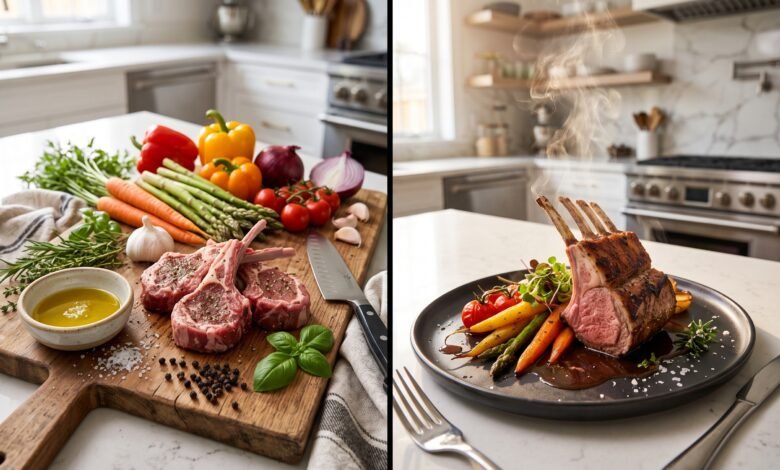
How to Create Viral AI Food Making Videos (Step-by-Step Guide + Master Prompt)
AI-generated cooking videos are becoming one of the fastest-growing content categories across YouTube Shorts, TikTok, Facebook Reels, and Instagram Reels. With the right workflow, you can create realistic food preparation videos without filming an actual kitchen.
This guide explains how to use AI to generate food-making videos from start to finish. You’ll learn how to create prompts, generate realistic cooking images, animate every preparation stage, and edit everything into a professional short-form video ready for social media.
Tools You’ll Need
- ChatGPT (Prompt Generation)
- Google Flow (Image Generation)
- Google Flow Image-to-Video
- CapCut (Video Editing)
Step 1 – Generate Food Ideas with ChatGPT
Start by copying the complete Master Prompt into ChatGPT.


After you paste the prompt, ChatGPT will ask you to enter a country name. For example, you can choose Italy, Japan, Mexico, Thailand, India, France, Korea, or any other country you like.
Once you submit the country name, ChatGPT automatically generates a list of ten popular dishes from that country. Simply choose the dish you want to create and send its name back in the same conversation.
After your selection, ChatGPT prepares a complete prompt package containing:
- Three detailed image prompts
- Preparation video prompts
- Cooking video prompts
These prompts are ready to copy and use directly in the next stage of your workflow. 1
Step 2 – Generate Your AI Food Images
Open Google Flow and begin generating your images one by one.
Create the first image using the first prompt. This image usually shows an empty preparation board where the cooking process will begin.
Download the generated image, then upload it back as a reference while generating the second image. The second image displays all ingredients neatly arranged on the board.
Repeat the same process for the third image by using the second image as your reference. This helps maintain consistent lighting, composition, and camera angle throughout the project.
For better organization, save the images with simple file names such as:
- image01.jpg
- image02.jpg
- image03.jpg
Step 3 – Create Ingredient Placement Videos
Switch to the Image-to-Video mode in Google Flow.
Upload the first image as the start frame and the third image as the end frame. Then paste the first ingredient placement prompt generated by ChatGPT to create the opening preparation animation.
Next, upload the third image as the start frame and the second image as the end frame. Paste the second prompt to animate the remaining ingredients being placed on the board.
Download both clips before moving to the next stage.
Step 4 – Generate Food Preparation Videos
Continue creating the preparation sequence using the remaining prompts generated by ChatGPT.
For each preparation video, upload the empty preparation board image as both the start frame and end frame, then paste the matching preparation prompt. Generate each clip one after another until all preparation scenes are complete.
This creates a smooth visual sequence that shows chopping, slicing, mixing, seasoning, and every important preparation step while keeping the camera angle consistent. 2
Step 5 – Generate the AI Cooking Videos
After completing all preparation scenes, it’s time to generate the cooking sequence.
Start by creating the first cooking video using the BASE cooking prompt. Unlike the previous scenes, you don’t need to upload any start frame or end frame for this step. Simply paste the BASE cooking prompt into Google Flow and generate the video.
Once the BASE clip is finished, continue using the Extend feature instead of creating separate videos. Copy each remaining cooking prompt from ChatGPT and extend the previous clip until the final hero shot is completed.
This workflow produces a smooth and continuous cooking sequence with natural camera movement and consistent visual quality. 0
Step 6 – Edit Everything in CapCut
After downloading every generated video clip, open CapCut and create a new project using a 9:16 vertical canvas.
Import every clip into the timeline in the correct order, starting with the ingredient placement videos, followed by the preparation scenes, and ending with the complete cooking sequence.
Your timeline should look similar to this:
- Ingredient Placement Video 01
- Ingredient Placement Video 02
- Preparation Scene 01
- Preparation Scene 02
- Preparation Scene 03
- Continue all remaining preparation scenes
- Cooking BASE Video
- All Extended Cooking Clips
- Final Hero Shot
Apply clean transitions only where necessary and keep the editing smooth so viewers remain focused on the cooking process.
Recommended Export Settings
- Aspect Ratio: 9:16 Vertical
- Resolution: 1080 × 1920
- Frame Rate: 30 FPS
- Format: MP4
- Quality: High
- Best Platforms: TikTok, Facebook Reels, Instagram Reels, YouTube Shorts
Pro Tips for Creating Better AI Food Videos
- Keep the same kitchen style throughout every scene.
- Use consistent lighting and camera angles.
- Generate multiple image variations and select the most realistic one.
- Use fresh ingredients with vibrant colors.
- Avoid changing the background between scenes.
- Add soft cooking sound effects for a satisfying ASMR experience.
- Keep transitions short and natural.
- Always export in Full HD for the best social media quality.
Common Mistakes to Avoid
- Changing camera angles randomly.
- Using different kitchen environments between scenes.
- Ignoring reference images during image generation.
- Generating low-quality images.
- Using loud background music that overpowers the visuals.
- Publishing without checking the final video flow.
Frequently Asked Questions
Can beginners use this workflow?
Yes. The process is beginner-friendly because ChatGPT generates the image and video prompts for you. You simply follow each step to create the final video.
Which AI generates the prompts?
ChatGPT creates the complete prompt package, including image prompts, preparation prompts, and cooking prompts based on your selected dish. 1
Which tool generates the images and videos?
Google Flow can be used to generate both the images and the image-to-video animations required for the complete cooking sequence.
Can I upload these videos to multiple platforms?
Absolutely. After exporting your project, you can publish it on YouTube Shorts, TikTok, Instagram Reels, Facebook Reels, and similar short-form video platforms.
Final Thoughts
Creating AI-powered food making videos is an excellent way to produce engaging short-form content without recording a real kitchen. By combining ChatGPT for prompt generation, Google Flow for visuals and animations, and CapCut for editing, you can build professional-looking cooking videos suitable for social media.
Experiment with different countries, cuisines, and dishes to keep your content fresh. Every new selection generates a unique set of prompts, giving you unlimited opportunities to create original cooking videos that stand out.
Publish consistently, improve your editing over time, and focus on high-quality visuals. This approach can help you build a library of attractive AI-generated cooking videos that perform well across today’s most popular video platforms.