How to Create Viral Mechanical Toy Transformation Videos with AI (Step-by-Step Guide + Master Prompts)
How to Create Viral Mechanical Toy Transformation Videos with AI (Step-by-Step Guide + Master Prompts)
Mechanical toy transformation videos are becoming one of the most engaging AI content trends across TikTok, YouTube Shorts, Instagram Reels, and Facebook Reels. Watching a compact capsule transform into a detailed futuristic mechanical toy creates a visually satisfying experience that attracts millions of views.
In this guide, you’ll learn the complete workflow for creating AI mechanical toy transformation videos using ChatGPT, OpenArt Nano Banana 2, Google Flow, and CapCut. From generating categories and models to producing realistic transformation animations, every step is explained in a beginner-friendly format.
Tools You’ll Need
- ChatGPT (Prompt Generation)
- OpenArt (Nano Banana 2)
- Google Flow (Image-to-Video)
- CapCut (Final Video Editing)
Step 1 – Generate Mechanical Toy Categories
Begin by copying the complete Master Prompt and pasting it into a new ChatGPT conversation.



Once the prompt is submitted, ChatGPT automatically generates 20 different mechanical toy categories. Each category represents a unique theme that can be transformed into futuristic robotic toys.
You can continue by choosing one of the available category numbers, entering your own custom subject, or typing “more” to receive a fresh collection of categories. 0
Step 2 – Select Your Favorite Model
After selecting a category, ChatGPT generates six unique mechanical toy models.
Each model includes three ready-to-use prompts:
- Image Prompt 1
- Image Prompt 2
- Video Prompt
Review the available models carefully and choose the one that best matches the mechanical toy you want to create.
Every time you request the same category again, ChatGPT produces completely new toy concepts, allowing you to generate unlimited original transformation ideas. 1
Step 3 – Generate the Capsule Image
Copy Image Prompt 1 from your selected model.
Next, open OpenArt and choose the Nano Banana 2 image model.
Paste the copied prompt into the prompt box and generate the image.
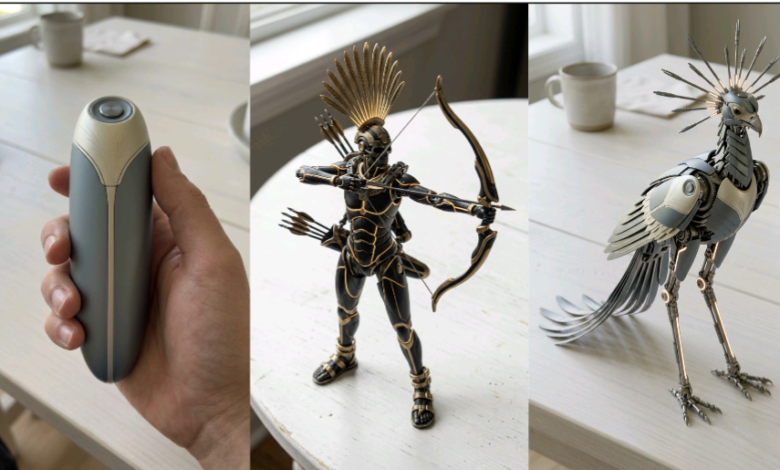
This first image represents the closed mechanical capsule before the transformation begins. It serves as the starting frame for your animation, so choose the highest-quality result available.
Download the finished image before moving to the next step. 2
Step 4 – Generate the Fully Transformed Mechanical Toy
Upload the capsule image you generated in the previous step as a reference image inside OpenArt.
Now copy Image Prompt 2 from the same model and paste it into the prompt field.
Generate the second image.
This image represents the fully transformed version of your futuristic mechanical toy while preserving the same design language, proportions, colors, and visual consistency established by the first image.
Once satisfied with the result, download the transformed mechanical toy image for the video generation stage. 3
Step 5 – Create the Mechanical Toy Transformation Video
After generating both images, open Google Flow and switch to Image-to-Video mode.
Upload the first image (the closed mechanical capsule) as the Start Frame.
Then upload the second image (the fully transformed mechanical toy) as the End Frame.
Copy the Video Prompt that belongs to the same model and paste it into Google Flow before starting the generation.
The AI will smoothly animate the capsule opening, mechanical components unfolding, and the complete transformation into the final futuristic toy, producing a cinematic transformation sequence. 0
Step 6 – Repeat with New Categories
One of the biggest advantages of this workflow is that it can generate unlimited original ideas.
Return to the same ChatGPT conversation and either choose another model from the current category or request a completely new category.
Every selection produces fresh prompts, allowing you to create an endless collection of unique mechanical toy transformation videos without repeating previous concepts. 1
Step 7 – Edit Your Videos in CapCut
After downloading your AI-generated transformation clips, open CapCut and create a new project using a vertical 9:16 canvas.
Import your generated videos into the timeline and arrange them in the correct order. You can improve the final result by trimming unnecessary frames, adjusting playback speed, adding subtle sound effects, and including suitable background music.
If you’re creating multiple transformation videos, combine them into a compilation to increase watch time and audience retention.
Recommended Export Settings
- Aspect Ratio: 9:16 Vertical
- Resolution: 1080 × 1920
- Frame Rate: 30 FPS
- Format: MP4
- Video Quality: High
- Best Platforms: TikTok, YouTube Shorts, Instagram Reels, Facebook Reels
Pro Tips for Better Mechanical Toy Videos
- Always use the same model’s prompts for both images and the video.
- Choose the sharpest capsule image before creating the transformation.
- Maintain consistent colors and mechanical design throughout the animation.
- Generate multiple image variations and select the most realistic one.
- Add cinematic mechanical sound effects during editing.
- Keep your videos short, smooth, and visually satisfying.
- Export in Full HD for the best social media quality.
Common Mistakes to Avoid
- Mixing prompts from different models.
- Using low-quality reference images.
- Changing the mechanical design between the first and second images.
- Skipping the reference image when generating Image 2.
- Adding excessive transitions that distract from the transformation.
- Publishing without previewing the final animation.
Frequently Asked Questions
Can beginners create these videos?
Yes. The workflow is beginner-friendly because ChatGPT generates the prompts, while OpenArt and Google Flow handle the image and video creation.
Why are there two images?
The first image represents the compact mechanical capsule, while the second image shows the completed transformed toy. Google Flow animates the transition between them. 2
Can I create unlimited toy designs?
Absolutely. Each category can generate multiple unique models, and requesting new categories provides an endless supply of fresh mechanical toy concepts.
Which platforms work best for these videos?
Mechanical toy transformation videos perform well on TikTok, YouTube Shorts, Instagram Reels, and Facebook Reels because of their visually satisfying transformation style.
Final Thoughts
AI mechanical toy transformation videos combine creativity with modern AI tools to produce eye-catching short-form content. By using ChatGPT for prompt generation, OpenArt Nano Banana 2 for image creation, Google Flow for animation, and CapCut for editing, you can create professional transformation videos without advanced design skills.
Experiment with different categories, models, and transformation styles to build a diverse collection of content. Since the workflow continuously generates fresh concepts, you can keep producing original videos that stand out across today’s most popular social media platforms.
ai mechanical toy videos, mechanical toy transformation, ai toy generator, ai transformation videos, chatgpt prompts, nano banana 2, openart nano banana, google flow tutorial, ai image prompts, toy transformation ai, viral ai videos, ai video prompts, mechanical robot toy, ai animation tutorial, image to video ai, ai content creation, transformation prompts, ai robot toys, capsule transformation, ai toy design, cinematic ai videos, ai workflow, ai prompt engineering, viral shorts ai, youtube shorts ai, instagram reels ai, ai video guide, openart tutorial, flow image to video, ai transformation workflow